Step 2 - Set a property value using the Kanzi Engine API
In this step you create a Text Block 2D node in Kanzi Studio and an alias pointing to that node, then using the Kanzi Engine API you set the value of the property that defines the content shown by the Text Block 2D node in your Kanzi application.
To set a property value using the Kanzi Engine API:
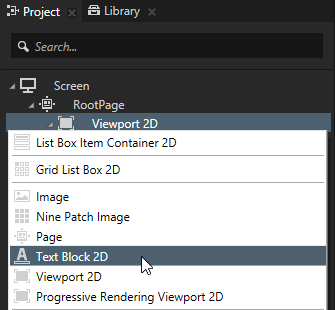
- In Kanzi Studio in the Project press Alt and right-click the Viewport 2D node and select Text Block 2D node.
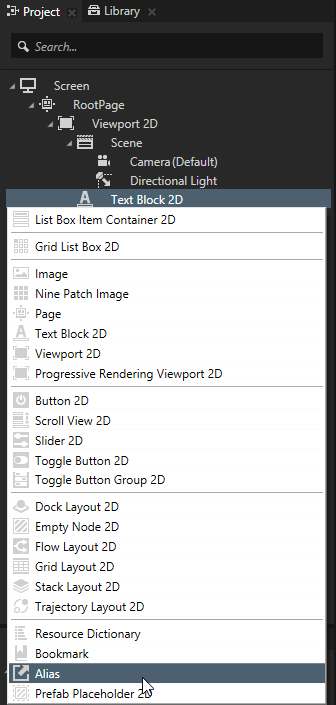
- In the Project press Alt and right-click the Text Block 2D you created and select Alias.
Kanzi Studio creates an alias pointing to the node from which you created the alias and adds it to the resource dictionary of its nearest parent node that contains a resource dictionary. In this example the nearest node with a resource dictionary is the Screen node. In the application code of this project you use the name of the alias to find and get that Text Block 2D node.
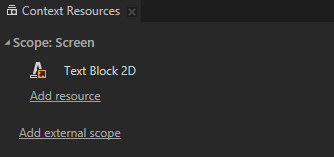
You can see the content of the resource dictionary for the node you select in the Project in the > Context Resources.
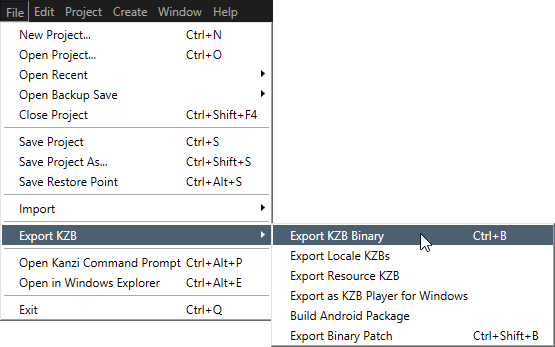
- In Kanzi Studio select > Export KZB > Export KZB Binary.
- In Visual Studio in hello_world.cpp
onProjectLoaded():// Get the Screen node whose resource dictionary contains the alias to the Text Block 2D node.
ScreenSharedPtr screenNode = getScreen();
// Get the Text Block 2D node using the alias you created in the Kanzi Studio project.
// The name of the alias is the same as the node name you used for the Text Block 2D in the Kanzi Studio project with the # sign prefix.
TextBlock2DSharedPtr textBlock = screenNode->lookupNode<TextBlock2D>("#Text Block 2D");
// Set the value of the Text Block 2D Text property to Hello world!.
textBlock->setText("Hello world!");
- Function
setText() sets the Text property of the Text Block 2D to Hello world! so that the text block shows Hello world! when you run your Kanzi application.
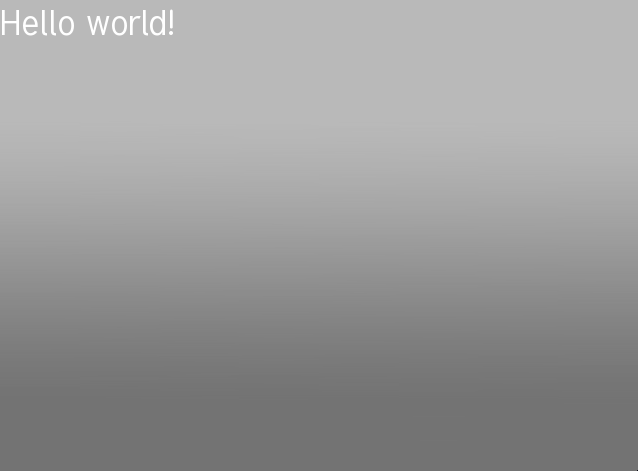
This is what your hello_world.cpp looks like when you complete this step.
#include <kanzi/kanzi.hpp>
// System logging
#include <system/debug/kzs_log.h>

using namespace kanzi;

class HelloWorld: public ExampleApplication
{
	virtual void onConfigure(ApplicationProperties& configuration) KZ_OVERRIDE
	{
		configuration.binaryName = "Hello_world.kzb.cfg";
	}


	virtual void onProjectLoaded() KZ_OVERRIDE
	{
		// Get the Screen node whose resource dictionary contains the alias to the Text Block 2D node.
		ScreenSharedPtr screenNode = getScreen();
		// Get the Text Block 2D node using the alias you created in the Kanzi Studio project.
		// The name of the alias is the same as the node name you used for the Text Block 2D in the Kanzi Studio project with the # sign prefix.
		TextBlock2DSharedPtr textBlock = screenNode->lookupNode<TextBlock2D>("#Text Block 2D");
		// Set the value of the Text Block 2DText property to Hello world!.
		textBlock->setText("Hello world!");

		// Prints Hello world! to the Kanzi debug console.
		kzsLog(KZS_LOG_LEVEL_INFO, "Hello world!");
	}
};

Application* createApplication()
{
	return new HelloWorld;
}
< PREVIOUS STEP
What's next?
In this tutorial you learned how to create a Kanzi Studio project with C++ application and use Kanzi Engine API to edited a property of a node you created in Kanzi Studio. To learn more about using the Kanzi Engine API, see:
See also
To learn about the underlying Kanzi principles, see Kanzi fundamentals.
To find out more about what you can create using the Kanzi Engine API, see API reference.
To learn more about how Kanzi manages resources, see Resource management.
To find out more about using aliases, see Using aliases.
To learn more about creating Kanzi applications, see Tutorials.
To find out more about Kanzi Studio features, see Working with ....

Open topic with navigation